Skip to content

Free template

Client Content & Asset Request Pack

Ask a client for the content you need in one clear list. The request explains what each item is for, the format you need and when; the internal checklist tracks what has arrived, what has been approved for use, and whether you have permission to use it.

Free download · No account needed

Which document do you need?

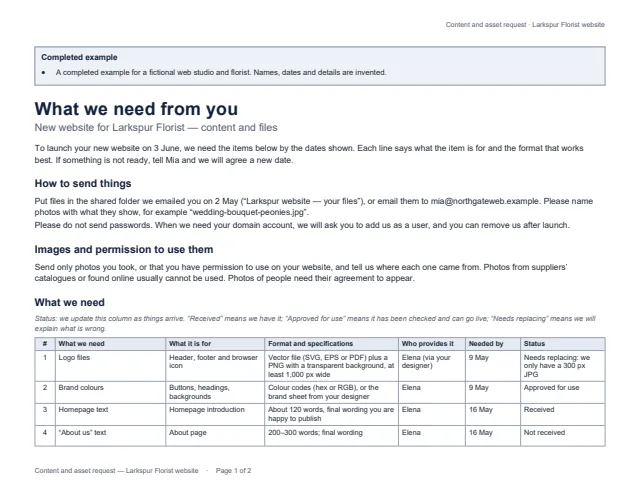
First page of the example content request for a florist’s website Enlarge preview: Content request — for your client

Content request — for your client

Send it when the project starts; update the status column as things arrive.

Each item you need, what it is for, the format and specifications, who provides it and by when, how to send files without passwords, and what permission images need.

Blank and an example · Word and PDF
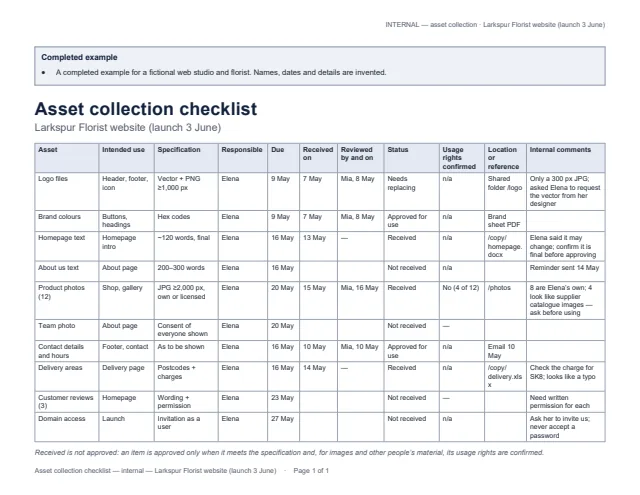
The example asset checklist with received, reviewed, status and usage-rights columns Enlarge preview: Asset collection checklist — internal

Asset collection checklist — internal

Keep it for your team, one line per requested item.

Intended use, specification, who is responsible, due and received dates, who reviewed it, status (received is not approved), whether usage rights are confirmed, where the file is, and internal comments.

Blank and an example · Word and PDF

Get the documents

Choose a document, a version and a format. After the first download, the others need no new form.

Document
Version
Format

You will get request-blank.docx

Word files open in Microsoft Word, Google Docs, Apple Pages and LibreOffice; we checked them in LibreOffice. US Letter landscape; change the paper size for A4. The example uses an invented web studio and florist.

What these documents do not do

  • They are not an upload portal: files arrive by your own shared folder or email.
  • They do not grant or check copyright for you; they record what the client tells you and what you confirmed.
  • Internal comments stay on the checklist and never appear on the client request.

Common questions

What is the difference between received and approved for use?

Received means you have the file. Approved for use means you have checked it against the specification — the right size, the final wording — and, for images or other people’s material, confirmed you are allowed to use it. Only approved items should go live.

Can I use the photos a client sends me?

Not automatically. The request asks clients to send only images they own or have permission to use and to say where each came from, and the checklist has a column for confirming usage rights before an image is approved.

How should clients give me access to their accounts?

By inviting you as a user. The request asks clients not to send passwords, and the checklist reminds your team never to record them.