Free spreadsheet
Weekly Employee Schedule
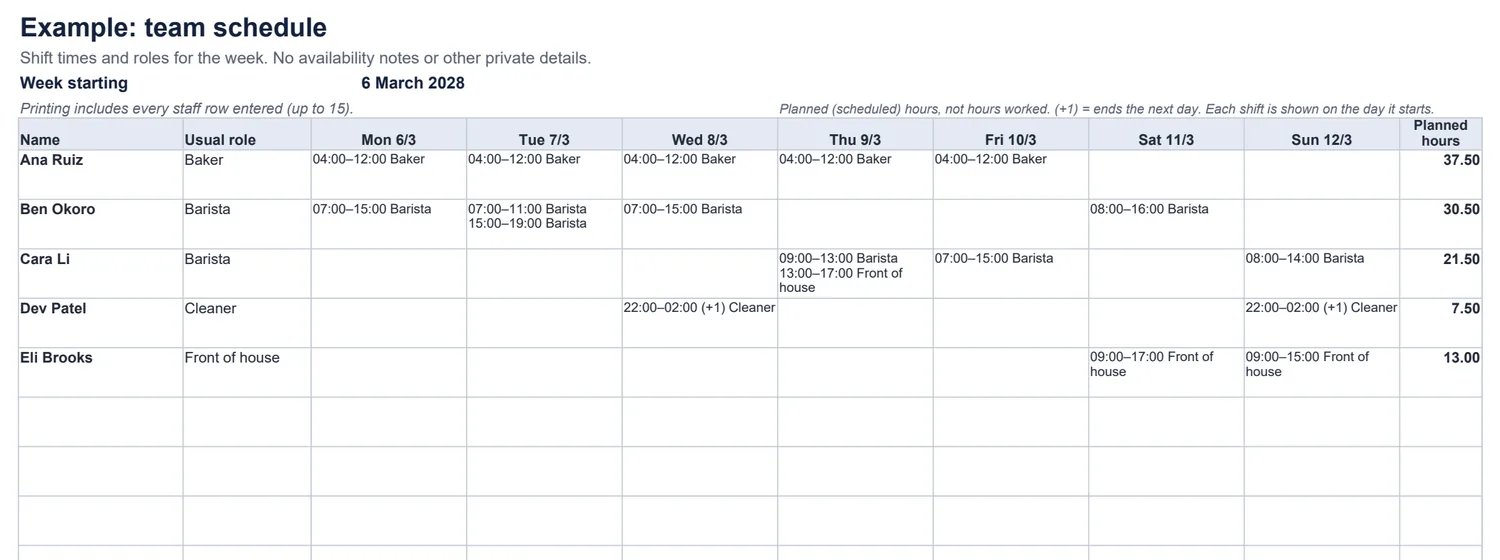
Plan the week for a small team: who works when, in which role or location, with planned hours per person and per day. The workbook flags overlapping shifts and missing times, and prints a clean team view without private notes.
Who is working when this week?
The rules
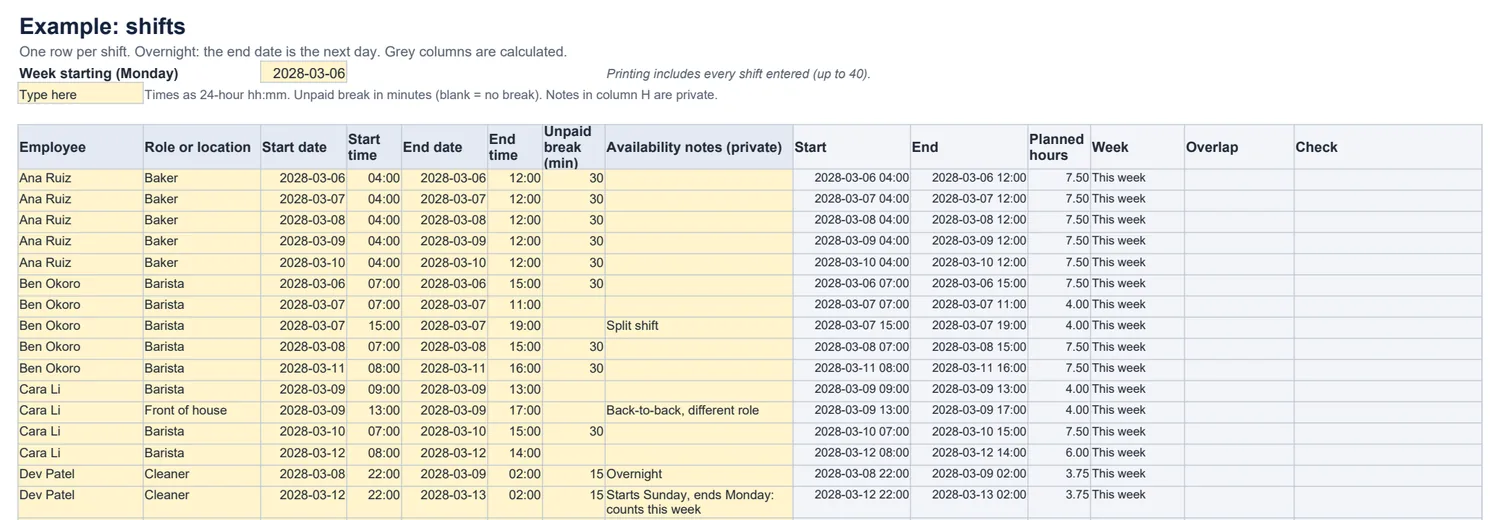
- Planned hours = end − start − unpaid break. Each shift counts on the day it starts.
- Several shifts in one day are separate rows; overlaps for the same person are flagged and not counted.
- Clock times only: adjust shifts across a daylight-saving change by hand.
Common questions
How do overnight shifts work?
Every shift has an explicit start date and end date, so 22:00 to 02:00 is entered with the next day as the end date. The team view marks it “(+1)”.
Which week does a shift that crosses midnight on Sunday belong to?
A shift belongs to the day — and the week — in which it starts. A Sunday 22:00 shift ending at 02:00 on Monday counts on Sunday of this week. The rule is the same everywhere in the workbook.
What does it check?
A missing end time (it is flagged, never counted as zero hours), an end before the start, a break as long as the shift, and two shifts for the same person that overlap. Flagged shifts are left out of the hours. Back-to-back shifts — one ending at 13:00 and the next starting at 13:00 — are not an overlap.
Is planned hours the same as hours worked?
No. These are scheduled hours: end − start − unpaid break. Record what actually happened with the time card calculator or the timesheet. Nothing here calculates pay, overtime or entitlements.
Can I print it for the staff noticeboard?
Yes — print the Team view. It shows shift times and roles only; availability notes and other private details stay on the Staff and Shifts sheets.
Which spreadsheet apps does it work in?
It is a standard .xlsx file with no macros. We checked the example, overlaps, overnight and week-boundary shifts, and adding rows as instructed in LibreOffice Calc. It has not been tested in Excel, Google Sheets or Numbers.